The question of Windows vs Linux is one that many PC users and businesses have grappled with over the years when considering an operating system, with the former often a favored option.
Despite the fact it isn’t as popular as Windows, Linux offers a number of advantages, including more avenues for customization due to the fact that it’s built on an open source foundation.
Linux may be more intimidating to the average user, but for those who possess the technical skills to take full advantage of it, this operating system can be incredibly powerful and rewarding.
Naturally, there are advantages and disadvantages with both systems that are useful to know before making the decision on which is best for you.
Windows vs Linux: A short history
Following the formation of Microsoft, the first version of Windows, called Windows 1.0, was revealed in 1985. MS-DOS core, which it was based on, was at the time the most commonly utilized Program Manager for running applications.
After that initial launch, its first major update arrived in 1987, followed by Windows 3.0 in the same year. This was a rapid journey of evolution and, in 1995, Windows 95 was born, probably the most widely used version yet. That version of Windows ran on a 32-bit user space and a 16-bit DOS-based kernel to enhance user experience.
Since Windows 95, the operating system hasn’t changed a whole lot when it comes to its core architecture. However, a vast amount of features have been added to meet the needs of modern computing but many of the elements we recognize today were present in the former versions of the operating system.
This includes, for example, the Start Menu, the taskbar, and Windows Explorer (now called File Explorer) which all were present in Windows 98.
One major shift happened with the launch of Windows ME in 2000. That was the last MS-DOS version of Windows, allowing for an even faster evolution of services since. However, some iterations of the platform still fared better than others and although it is still the most popular computing platform, users have dropped off over the years and migrated to other platforms, such as MacOS and Linux.
Linux was launched later than Windows, in 1991. It was created by Finnish student Linus Torvalds, who wanted to create a free operating system kernel that anyone could use.
Although it's still regarded as a very bare bones operating system, without a graphical interface like Windows, it has nevertheless grown considerably, with just a few lines of source code in its original release to where it stands today, containing more than 23.3 million lines of source code.
Linux was first distributed under GNU General Public License in 1992.
Windows vs Linux: Distros
Before we begin, we need to address one of the more confusing aspects to the Linux platform. While Windows has maintained a fairly standard version structure, with updates and versions split into tiers. Once you understand the generations and naming schemes, purchasing a Windows OS is fairly intuitive for most consumers.
Linux is far more complex. The Linux Kernel today underpins all Linux operating systems. However, as it remains open source, the system can be tweaked and modified by anyone for their own purposes.

What we have as a result are hundreds of bespoke Linux-based operating systems known as distributions, or 'distros', including Linux Ubuntu (shown above). Each distro has its own pre-installed packages and functionality, although some are considered derivations of 'parent' distros and have shared features. For example, the Linux distro Debian is considered a parent of distros such as KALI Linux and Ubuntu.
This makes it incredibly difficult to choose between them, although we do have our own recommendations on what we consider the best Linux distros on the market - but nonetheless, it's far more complicated than simply picking Windows 10 or Windows 11.
Given the nature of open source software, these distros can vary wildly in functionality and sophistication, and many are constantly evolving. The choice can seem overwhelming, particularly as the differences between them aren't always immediately obvious.
On the other hand, this also brings its own benefits. The variety of different Linux distros is so great that you're all but guaranteed to be able to find one to suit your particular tastes. Do you prefer a macOS-style user interface? You're in luck - Elementary OS is a Linux distro built to mirror the look and feel of an Apple interface.
Similarly, those that yearn for the days of Windows XP can bring it back with Q4OS, which harkens back to Microsoft's fan-favorite.
There are also more specialized Linux flavors, such as distros that are designed to give ancient, low-powered computers a new lease of life, or those that come packaged with cyber security tools to aid the work of analysts (KALI Linux). Naturally, there are also numerous Linux versions for running servers and other enterprise-grade applications.
For those new to Linux, we'd recommend Ubuntu as a good starting point. It's very user-friendly (even compared to Windows) whilst still being versatile and feature-rich enough to satisfy experienced techies. It's the closest thing Linux has to a 'default' distro although we would urge everyone to explore the various distro options available and find their favorite.
Windows vs Linux: Ease of installation

A common feature of Linux distros is the ability to live' boot them – that is, booting from a DVD or USB image without having to actually install the OS on your machine. This can be a great way to quickly test out if you like a distro without having to commit to it.
While it's technically quicker to install some Linux distros, Windows offers a refined user experience that requires just a few clicks.
The distro can then be installed from within the live-booted OS, or simply run live for as long as you need. However, while more polished distros, such as Ubuntu, are a doddle to set up, some of the less user-friendly examples require a great deal more technical know-how to get up and running, including knowledge of the command line tool, known as the Shell on Linux.
Windows installations, by contrast, while more lengthy and time-consuming, are a lot simpler, requiring a minimum of user input compared to many distros. Windows has an installation Wizard that has been refined over the years, and is largely the same regardless of what version you are using.
Windows vs Linux: Software and compatibility
Most applications are tailored to be written for Windows. You will find some Linux-compatible versions, but only for very popular software. The truth, though, is that most Windows programs aren't available for Linux.
A lot of people who have a Linux system instead install a free, open source alternative. There are applications for almost every program you can think of. If this isn't the case, then programs such as WINE or a VM can run Windows software in Linux instead.

Despite this, these alternatives are more likely to be amateur efforts compared to Windows. If your business requires a certain application then it's necessary to check if Linux runs a native version or if an acceptable replacement exists.
There are also differences in how Linux software installs programs compared with Windows. In Windows, you download and run an executable file (.exe). In Linux, programs are mostly installed from a software repository tied to a specific distro.
Installing on Linux is done by typing an apt-get command from the command line. In many Linux distros, a package manager handles this by layering a graphical user interface (GUI) over the messy mechanics of typing in the right combination of words and commands. This is in many ways the precursor of a mobile device's app store.
Depending on the software, some won't be held in a repository and will have to be downloaded and installed from source. In this case, the installation becomes more similar to that of Windows software. You simply download the relevant package for your distro from the company's website, and the inbuilt package installer will complete the rest. However, not all Linux distros offer a GUI, so depending on the version you're using, the experience may be more involved.
Windows users have a much easier time when it comes to accessing software and avoiding compatibility issues, but Linux matches that with sheer variety of specialized tools
If you just look at everyday business software, Windows has a big advantage over Linux. Virtually every program is designed from the ground up with Windows support in mind. In general, Windows users aren't affected by compatibility worries.
However, for roles requiring specialist tools, such as cyber security or networking roles, Linux offers incredibly powerful applications that are difficult, or even impossible, to replicate on Windows.
Windows vs Linux: Help & support
As Linux is created and maintained by a community of passionate fans, there is a wealth of information to fall back on, in the form of tips, tricks, forums, and tutorials from other users and developers.
However, it's somewhat fragmented and disarrayed, with little in the way of a comprehensive, cohesive support structure for many distros. Instead, anyone with a problem often has to brave the wilderness of Google to find another user with the answer.

A lack of official, centralized support can created a dis-jointed experience on Linux – Windows is the winner here.
Microsoft is much better at collating its resources and offering help to its users. Though it doesn't have quite the amount of raw information that's available regarding Linux, it's made sure that the help documents it does have are relatively clear and easy to access.
There's also a similar network of forums and tutorials, if the official assistance doesn't help you solve the Windows problem you're encountering.
Windows vs Linux: Security
Security is a cornerstone of the Linux OS, and one of the principal reasons for its popularity among the IT community. This reputation is well deserved and stems from a number of contributing factors.
One of the most effective ways Linux secures its systems is through privileges. Linux does not grant full administrator or root access to user accounts by default, whereas Windows does. Instead, accounts are usually lower-level and have no privileges within the wider system.

This means that when a virus gets in, the damage it can do is limited, and restricted mainly to files and folders on the individual machine. This can be incredibly beneficial from a damage control standpoint, since it's far easier to simply replace one machine than scour the entire network for malware traces.
There's also the fact that open source code, such as Linux software, is generally thought to be more secure and better maintained, due to the number of people scanning it for flaws. Similar to the infinite monkeys' principal, 'Linus' Law' (named after Torvalds), states that "given enough eyeballs, all bugs are shallow".
Similarly, there are Linux distros designed to enhance user privacy, such as Tails (screenshot above). Tails is configured to route all internet traffic through the TOR browser by default, and to operate entirely off the system memory – so everything is wiped when the machine is shut down.
Linux simply has a much tougher security posture and so, when combined with the scale of the attack surface against Windows, there's not much contest.
Possibly most importantly, is the issue of compatibility. As we mentioned earlier, virtually all software is written for Windows, and this also applies to malware. Given that the number of Windows machines in the world vastly outnumbers the number of Linux ones, cyber attacks targeting Microsoft's OS are much more likely to succeed, and therefore much more worthwhile prospects for threat actors.
This isn't to say that Linux machines are totally immune from being targeted, of course, but statistically, you're probably safer than with Windows, provided you stick to security best practice.
Windows vs Linux: Layout, design, and user interface
Users are somewhat spoilt for choice in terms of design on Linux. There are distros that visually emulate both OSX and Windows and rely on GUIs, or those that are stripped-down systems for those that favour minimalism. Regardless of the distro, they can be controlled by a command-line interface (CLI).
We've pulled together some of our own favourites in our best Linux distros list, but it's a good idea to familiarise yourself with the choices available.

Some, of course, are visually dire, but that's the risk of community-created software. Most of the major distros, however, are very well-designed, particularly corporate-backed offerings such as Ubuntu and Red Hat Enterprise Linux.
Most users will be familiar with the Windows UI and UX. It's the product of years of refinement and, apart from the bump in the road that was Windows 8, the OS has kept to the same GUI with very little iteration between each new release. This is for good reason – it's generally an intuitive and very pleasant user experience.
These UI elements, such as those which comprise navigation and layout, have become absorbed into other systems and inspired other UI designers. As such, many users are able to operate Windows intuitively, without needing to learn anything.
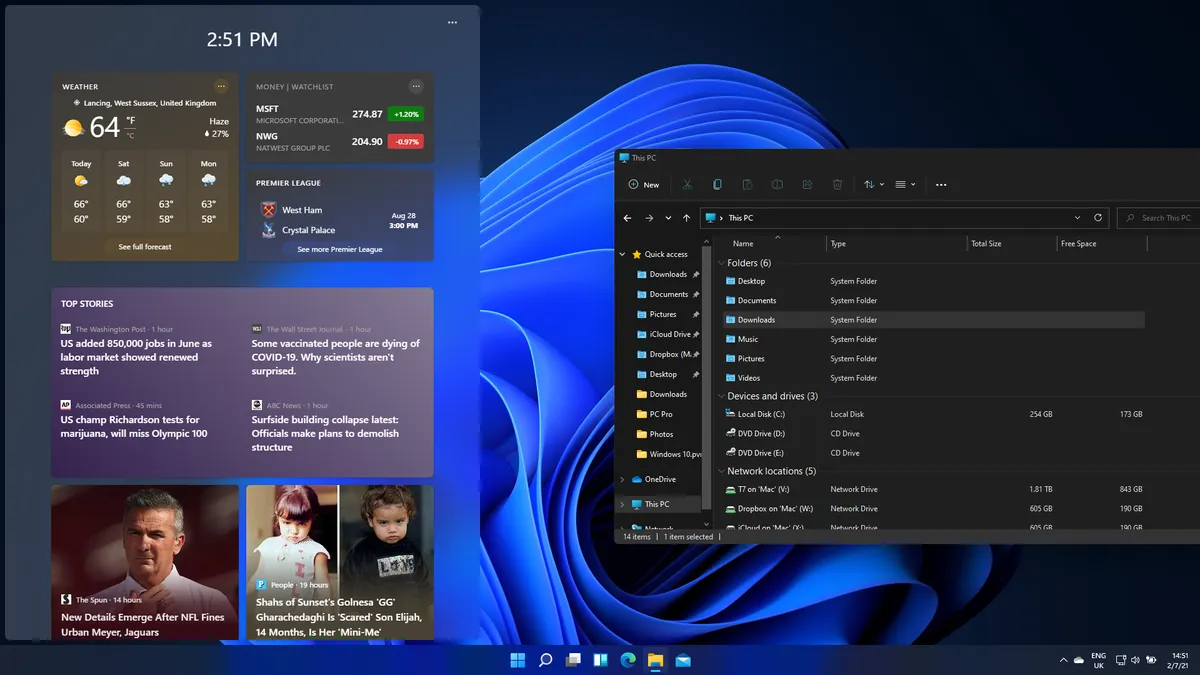
Microsoft, to its credit, has also spent the past few years simplifying the more confusing and labyrinthine elements of its software and generally making it much more accessible for entry-level users that aren't necessarily computer literate.
Although Linux offers plenty of variety, years of refinement make the Windows experience a tough one to beat.
It's because of this refinement, coupled with the fact your experience will vary significantly depending on the Linux distro you choose, that we have to give this one to Windows.
Windows vs Linux: Performance
Although Microsoft's flagship operating system has plenty of things going for it, being lightweight and agile is not one of them. It can, in many machines, seem bloated and sluggish, and must be properly maintained or it will end up feeling too slow and out-of-date.
Linux is known for being far quicker, largely due to the core of Linux being less demanding than that of Windows, with distros tweaking this formula to squeeze out yet more efficiency gains.
Some distros have chosen to remove a few of the flashier elements of the user interface, or even ditch the GUI entirely in favour of a CLI. This may be unappealing for general users, but power users, IT admins, and IT analysts, these changes offer unparalleled efficiency. It also means that Linux might be ideal for those with older machines that might not be able to handle the latest software.
Linux is a work horse at heart, offering unparalleled efficiency for those looking for top-tier performance.
Although you might be able to strip back Windows to the most basic elements to ensure your machine runs as smoothly as possible, you won't be able to achieve the experience offered by Linux.
Windows vs Linux: Which operating system is better?
Windows remains the most popular operating system on the planet, and that vast market share means most users will likely have at least some experience with it - in fact in many cases, Windows will be the only operating system they have ever used. It's a refined system with many years of development under its belt, with the latest iteration, Windows 11, receiving constant security updates and utility upgrades, and is the platform of choice for a whole host of software suites.

Simply put, Windows remains the simplest choice for most businesses, and will likely be the best choice for many, given it's far more user-friendly than Linux.
Does that mean businesses should avoid Linux? Absolutely not.
Theoretically, being based on open source software means that bugs could be discovered and fixed far quicker on Linux than on Windows, and new features can be developed and tested by users directly.
The platform is also significantly more flexible, and more customisable than Windows, meaning businesses can switch their platforms on the fly if they wish, provided they have the technical expertise to do so. Building a bespoke Linux system will give you far greater control over your systems, offering much better utilisation of storage hardware, better customisation, and improved security in some cases.
If you're a small firm that works primarily in software, Linux is likely to be a good fit, as the free availability will reduce overheads, and set-up won't be too complicated to manage. It also has a reputation as a tool for coding, and a large, active community of developers.
However, larger deployments will be much more complicated. Replacing the computers of hundreds of employees is likely to cause chaos, particularly if they're not familiar with Linux. It's possible this can be avoided with a Windows-style distro but, without a very capable and well-integrated IT department, many companies will struggle. In most cases, businesses will use a combination of the two operating systems, with at least some employees on Linux, such as cyber security analysts.
Given the flexibility of multiple distros, the non-existent asking price and the heightened security, Linux is our overall favourite - assuming you've got the patience to adapt to a new system. If convenience is your main concern, go for Windows.